Site Organization & Menus
Learn how to create and order menus to help visitors navigate your site.
Menus
As a site manager, you will be responsible for five menus. Menu configuration can be found in the Drupal editor under admin/structure/menu. You will use the following menus:
Main Navigation
This menu appears at the top of your web pages. Select "Add Link" to add new items to the header, remove, reorder or edit existing items, and press Save to update your changes.
Contact Us Footer
Titled "Footer Contact" in the Drupal Menus section. Select "Add Link" to add new items to the footer, remove, reorder or edit existing items, and press Save to update your changes.
Local Footer
Titled "Footer" in the Drupal Menus section. Select "Add Link" to add new items to the footer, remove, reorder or edit existing items, and press Save to update your changes.
Utility Footer
Titled "Footer Utility" in the Drupal Menus section. Select "Add Link" to add new items to the footer, remove, reorder or edit existing items, and press Save to update your changes. This menu will host commonly used resource and regulatory links.
Social Media Footer
Titled "Social Links" in the Drupal Menus section. Select "Add Link" to add new items to the footer, remove, reorder or edit existing items, and press Save to update your changes.
Manage Global Announcements
Sitewide Alerts can be configured to provide users with available information at a glance. They can be found under in the Drupal editor under Content > Sitewide Alerts.
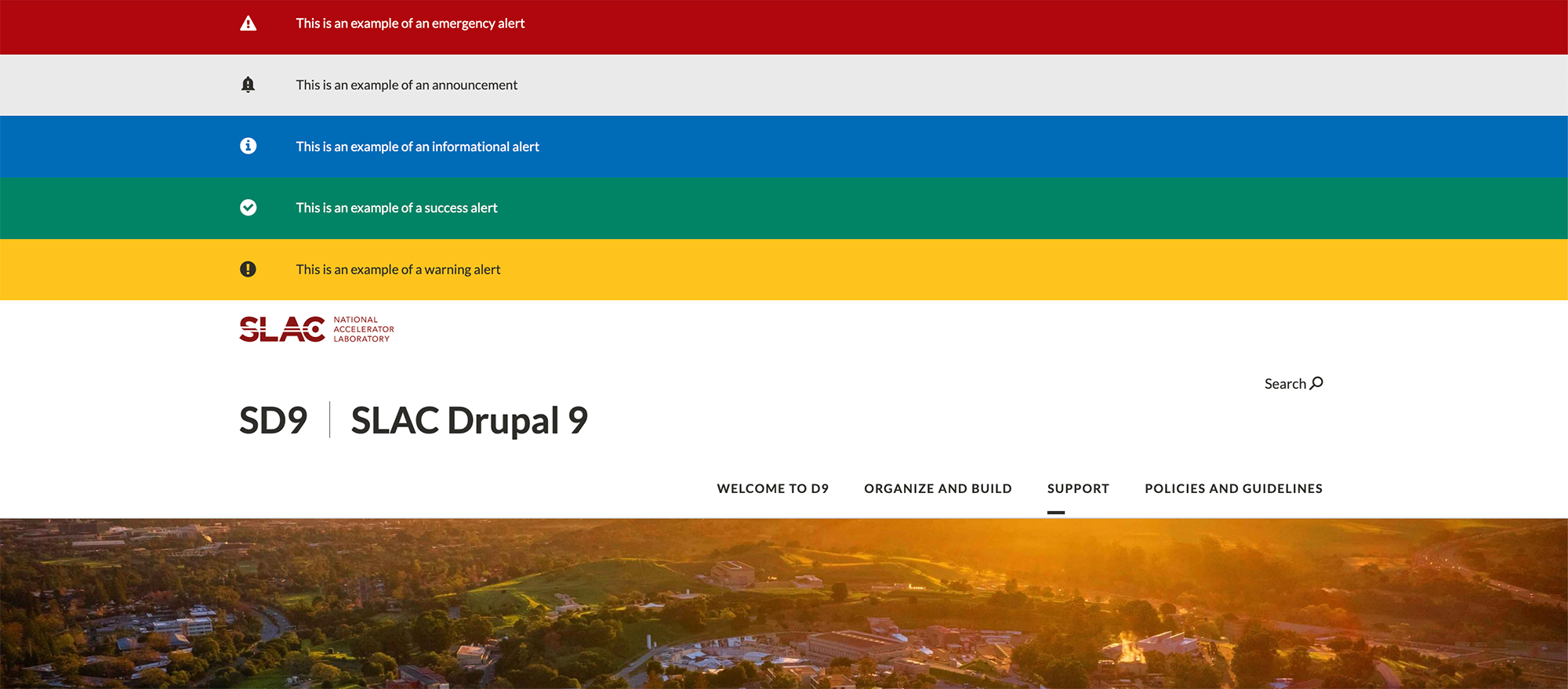
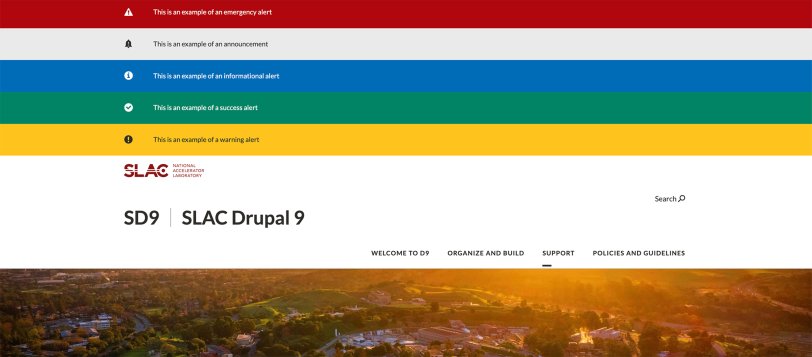
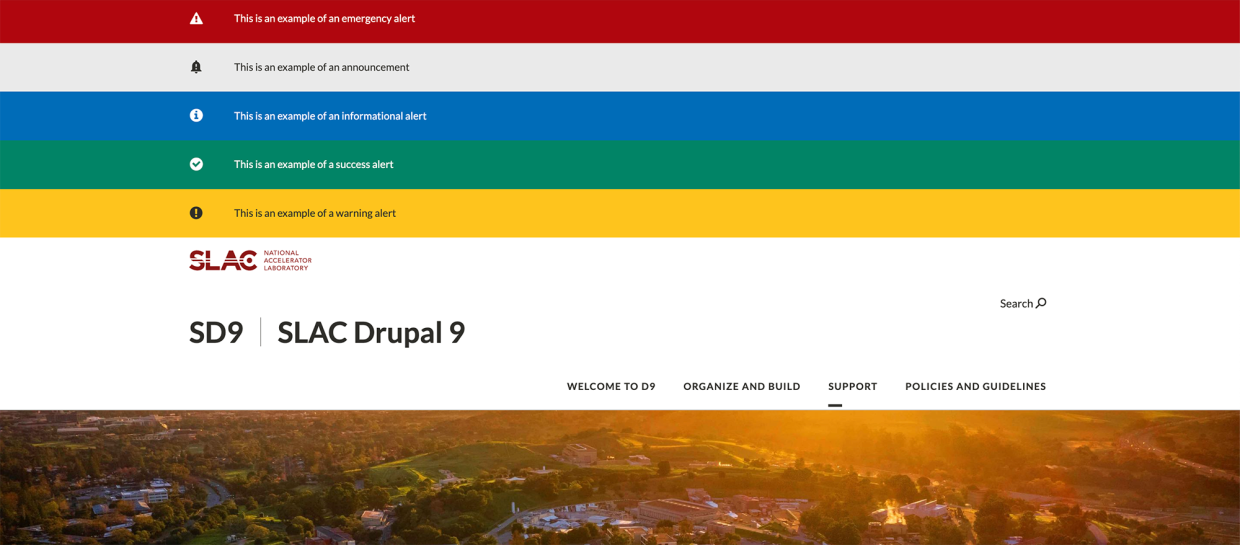
Add a new sitewide alert, select the nature of the alert, provide your audience with the alert message; some optional configuration options can be found below. The nature of the alert determines which color is applied to the alert as it appears across your site - red for emergency, green for success, etc.
To turn off any sitewide alerts, navigate to Content > Sitewide Alerts, select the intended alert, scroll to the bottom of the alert edit page, and select Delete. Alternatively, delete the alert from the list view by selecting the dropdown arrow under "Operations" and selecting "delete."
Managing URL's & Redirects
URL Aliases
The default URL will be determined based on the title when creating a page. However, when editing a page, a content editor can customize the URL alias of that page so that it better reflects the content of the page. This option can be found in the sidebar of a page editor, under URL alias.
URL Redirects
URL Redirects can also be managed at the page-level, similar to a URL alias. Locate URL redirects in the sidebar of the page editor, and select "Add URL redirect" to determine the redirect's pathway. A site manager can also navigate to redirects through Configuration > Search & Metadata.